
The Ultimate Guide to Computer Cases with LED Screens
Introduction
Computer enthusiasts and gamers are always looking for ways to enhance their setups. One trend gaining traction is computer cases with LED screens. These cases transform a simple computer into a visual masterpiece while offering practical advantages such as system monitoring. In this guide, we’ll dive into this trend, explore key features to consider, and equip you with the insights you need to make an informed purchase decision.
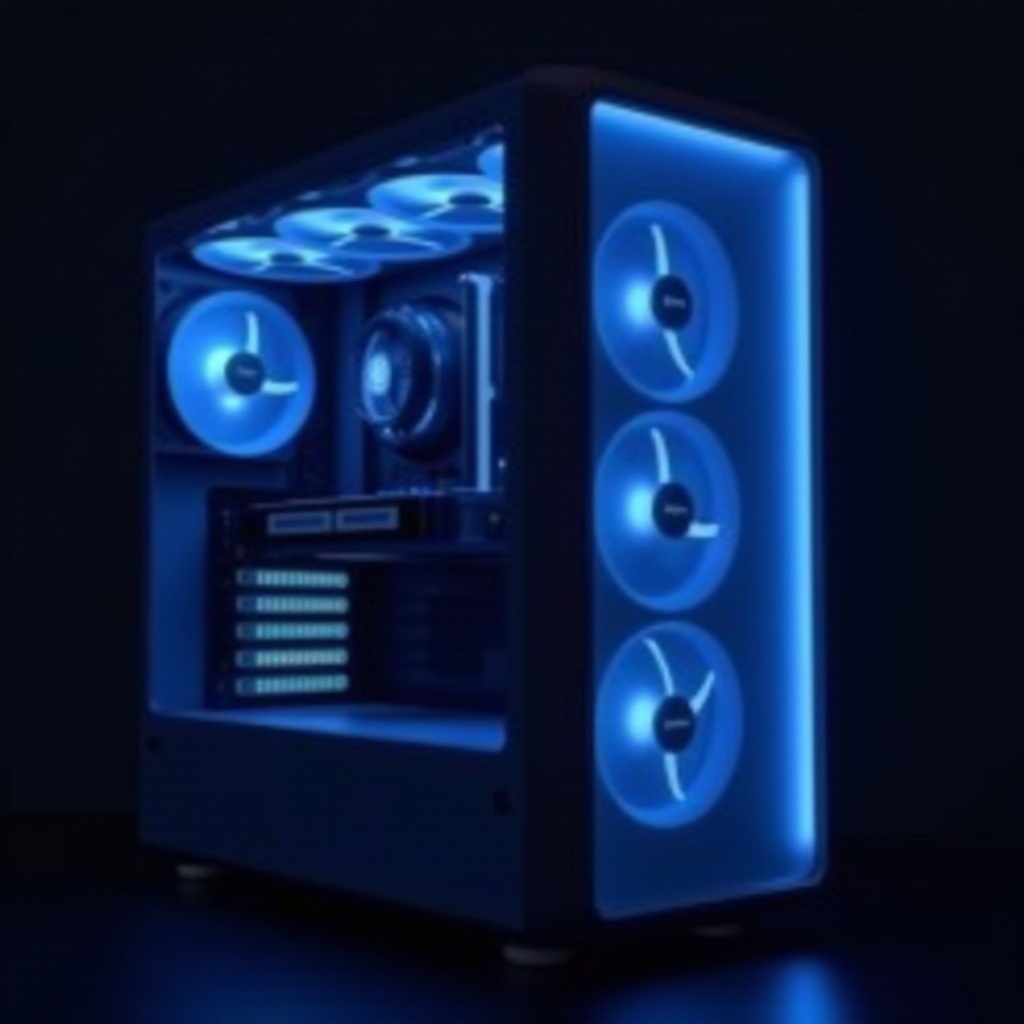
Understanding Computer Cases with LED Screens
Computer cases with LED screens integrate visual displays into the case design, offering unique customization options and practical usage for tech aficionados.
What Are LED Screens in Computer Cases?
LED screens within computer cases serve as mini-displays for system stats, custom images, or animations. These customizable screens connect directly to the system, allowing real-time updates and personalization. They add a sophisticated look and can enhance your gaming or workspace environment.
Types of LED Screens Available
There is a variety of LED screens that cater to different needs:
- Basic Monochrome Displays: These offer simple, often white light displays ideal for constant system stats.
- RGB LED Screens: More advanced, they offer full-color displays that can showcase any image or animation.
- Touchscreen LED Screens: These interactive screens provide an additional control layer, integrating with software to offer real-time adjustments and interaction.
Understanding the type you need depends on your customization goals and technical requirements.
Key Features to Consider
Choosing a computer case with an LED screen involves assessing a few key features to ensure it fits your requirements. After grasping the types available, you must delve into the specific features that could influence your decision.
Screen Customizability and Resolution
Quality varies widely across models. Look for high-resolution displays that allow for clear visuals. Customizability is a must, enabling you to modify what is shown—from static images to dynamic data streams.
Connectivity Options
Consider how these screens connect to your system. Do they require dedicated ports, or do they connect via USB or other standard options? Ensuring compatibility with your existing build ensures seamless integration and optimal function.
Build Quality and Size Compatibility
Your computer case not only needs to be sturdy but should also fit your overall setup. Check for robust materials and dimensions that accommodate various components, allowing future upgrades.
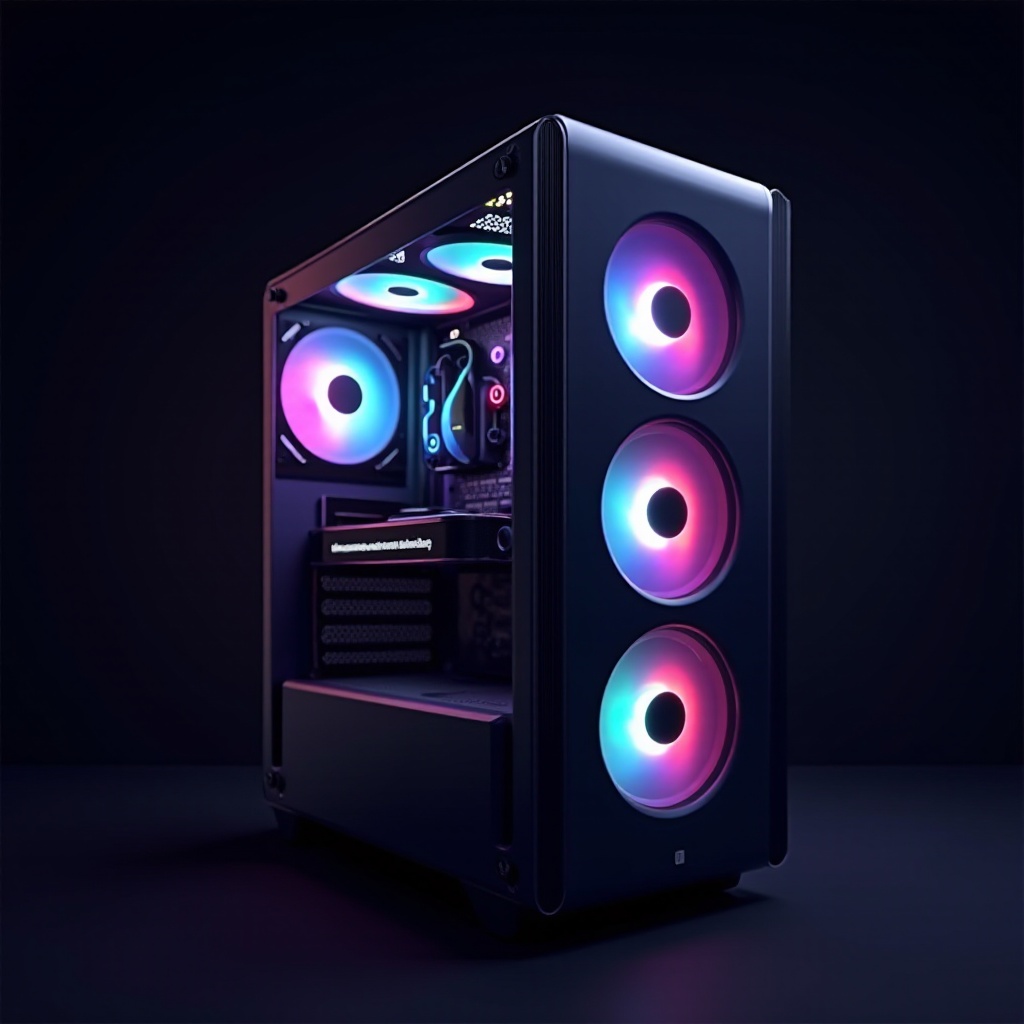
Top Computer Case Models with LED Screens in 2024
To move from abstract features to concrete solutions, exploring popular models for 2024 will help you make an informed decision.
Model A: Features and Benefits
Model A stands out with its high-resolution RGB screen, offering vibrant visuals. Its sturdy design and excellent airflow management make it a favorite among gamers who prioritize performance alongside aesthetics.
Model B: Features and Benefits
Model B offers a balance between cost and features. It provides excellent build quality at a more accessible price point while not compromising on basic LED screen capabilities.
Installing and Customizing LED Screens in Your Case
Making the best choice is only part of the equation. Integrating your new LED screen seamlessly into your computer case is critical to achieving your dream setup.
Tools and Preparations Needed
- Screwdriver Set: Essential for opening the case and securing components.
- Cable Management Accessories: Keeping cables tidy ensures both aesthetics and function.
- Static Wristband or Anti-Static Mat: Essential for avoiding static electricity that could damage components.
Step-by-Step Installation Process
- Power Off and Unplug: Ensure the computer is shut down and disconnected from power.
- Open the Case: Use the screwdriver to remove the side panels.
- Mount the LED Display: Secure the LED screen in its designated spot using screws or clips, as advised by the manufacturer.
- Connect Cables: Use the appropriate ports for your screen, ensuring they are securely fastened.
- Tidy Up: Use cable ties to manage cables neatly, making future adjustments easier.
Customization thereafter typically involves software provided by the screen manufacturer, allowing for changes in the display according to your preferences.
Maximizing Aesthetic and Functional Benefits
Once installed, the focus shifts to maximizing the screen’s potential to enhance your computer setup.
Design Ideas for Personalization
- Animated Logos: Display your personal or favorite gaming logos with animations.
- System Monitoring: Use live statistics such as RAM usage, CPU temperature, and fan speed.
- Custom Artworks: Showcase favorite artworks or personal photos.
Practical Usage for System Monitoring
Beyond aesthetics, these screens offer practical benefits like system performance monitoring, providing real-time data that helps prevent overheating and optimize resource usage.
Conclusion
Computer cases with LED screens offer a compelling mix of aesthetics and functionality, enhancing any personal computer setup. By understanding key features, trending models, and installation tips, you can make an informed purchase that aligns with your needs.
Frequently Asked Questions
How do I connect the LED screen in a computer case?
Most LED screens connect via USB or internal headers, with specific instructions provided by the manufacturer. Ensure you follow these carefully for optimal performance.
Are LED screens in computer cases worth the investment?
While an additional expense, LED screens offer customization and system monitoring benefits, making them worthwhile for enthusiasts seeking both functionality and visual upgrades.
Can I replace or upgrade the LED screen in my computer case?
Many models allow for upgrades, but compatibility is key. Ensure any new screen fits the existing case design and connects with your hardware configuration to avoid issues.