
How to Safely Remove Ants from Your Laptop: Step-by-Step Guide
Introduction
Ants can unexpectedly find their way into your laptop, attracted by warmth and the occasional food crumb. This intrusion can potentially harm your device, making it crucial to act swiftly if you notice ants crawling across your keyboard or screen. Our detailed guide will instruct you on how to safely remove ants from your laptop, ensuring it remains in optimal condition. Furthermore, you’ll learn preventive measures to stop future infestations, creating an unwelcoming environment for these little intruders.
Why Are Ants Attracted to Laptops?
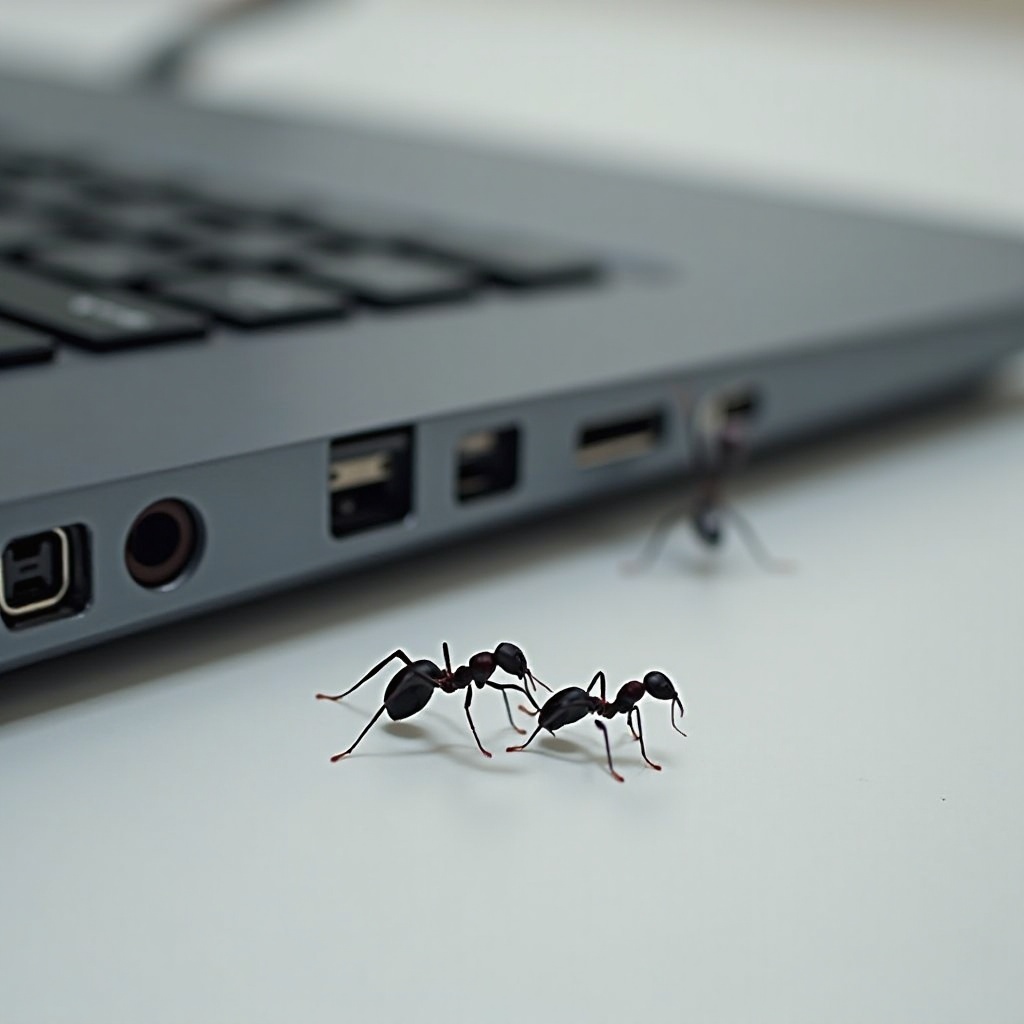
Laptops appeal to ants mainly because they emit warmth and sometimes harbor food particles. Internal components of laptops generate heat, which is especially evident when used on surfaces like beds or couches, restricting airflow. For ants that are in search of a warm habitat or food source, this can be an invitation to take residence. Those who snack while working may inadvertently create another incentive by dropping crumbs. Understanding these attractants helps not only in removing ants but also in preventing their return. This insight will guide the cleaning strategies you deploy for your laptop.
Preliminary Steps to Protect Your Data
Before starting any hardware intervention, it’s vital to protect your data. Here’s how:
-
Back-Up Your Data: Use an external hard drive or cloud storage to back up your important files, ensuring data safety during the cleanup process.
-
Disconnect from the Internet: Avoid potential data breaches by disconnecting from the internet if your laptop will remain open longer than anticipated.
-
Log Out of All Accounts: Log out from accounts containing sensitive information such as banking, email, and work-related software.
Implementing these precautions safeguards your data as you get ready to physically engage with the device.
Gathering Tools and Preparing Your Workspace
To effectively manage the ant issue, you’ll need certain tools:
- A screwdriver set suitable for your laptop model
- Compressed air canister
- A soft brush or anti-static cloth
- A magnifying glass for visibility
- A small vacuum cleaner designed for electronics (optional)
Prepare your workspace as follows:
- Choose a clean, flat surface with good lighting.
- Ensure the area is free from food and sugary liquids to avoid attracting more ants.
- Lay a soft cloth or mat to catch any minute screws and protect your device’s surfaces.
With tools and workspace ready, proceed with the careful removal process outlined below.
Step-by-Step Guide to Safely Removing Ants
Power Down and Disassemble Your Laptop
- Completely power off your laptop and unplug from any power source.
- Use your screwdriver to remove the laptop’s back panel carefully, adhering to your laptop’s manual for guidance to avoid damaging components.
- Collect the screws in a secure container to prevent misplacement.
Locate and Remove Ant Colonies
- Deploy the magnifying glass to locate ant colonies or gathering spots, focusing on corners or crevices.
- Use short, controlled bursts from the compressed air to expel any visible ants, careful not to harm components.
- Employ the soft brush for a deeper clean, gently dusting interior parts to eradicate ants safely.
Clean Internal Components and Reassemble
- Consider using a vacuum cleaner for any lingering debris once visible ant activity dwindles.
- Inspect each part meticulously before closing the case to ensure no stragglers are left behind.
- Reassemble the laptop, following disassembly steps in reverse.
Once reassembled, power on your laptop to verify its functionality.
Preventative Measures to Keep Ants Away
Employ these measures to deter ants from inhabiting your laptop:
- Keep Food and Drinks Away: Refrain from eating over your laptop to minimize crumb penetration.
- Use Laptop on Hard Surfaces: Facilitate airflow and lessen heat buildup to deter ants seeking warmth.
- Regular Cleaning: Frequently clean your keyboard and screen to avert dust and crumbs attracting ants.
- Place Laptops on Cooling Pads: Cooling pads help reduce heat retention, diminishing ant attraction.
Consistently implementing these measures fosters an ant-free laptop environment.
When to Consider Professional Help
If your ant removal attempts don’t fully resolve the problem or if significant damage has occurred, it’s advisable to seek professional assistance. Experts can provide comprehensive cleaning and repair services, potentially saving your laptop’s functionality. Especially under warranty terms, professional services offer peace of mind and effective results without risking further damage.
Conclusion
Ant invasions in laptops are surprisingly more frequent than one might assume, yet swift and appropriate actions can mitigate damage. This guide equips you to effectively remove ants and preempt future infestations. Protecting your data, utilizing the right tools, and adopting preventive practices ensure your laptop remains operational and ant-free.
Frequently Asked Questions
Can ants damage my laptop permanently?
Yes, ants can inflict damage by nesting inside or affecting electrical circuits. Timely removal and preventive measures are vital.
Is it safe to use insecticide near my laptop?
It’s best to avoid using insecticide near electronics. Use cleaning methods like compressed air or consult professional services.
How can I prevent ants from returning?
Regular cleaning, keeping food away from your laptop, using cooling pads, and maintaining an unattractive environment for ants will help.