How to Connect AirPods to Your Smart TV in 2024
Introduction
Unlock the full potential of your viewing experience by connecting your AirPods to your smart TV. This setup allows for premium sound quality, ensuring you enjoy movies and shows without interruption. Whether you’re looking to enjoy a quiet night in or create an immersive sound environment, connecting AirPods to your smart TV is a game-changer. We will guide you through the entire process, making it straightforward and stress-free.
Understanding Compatibility
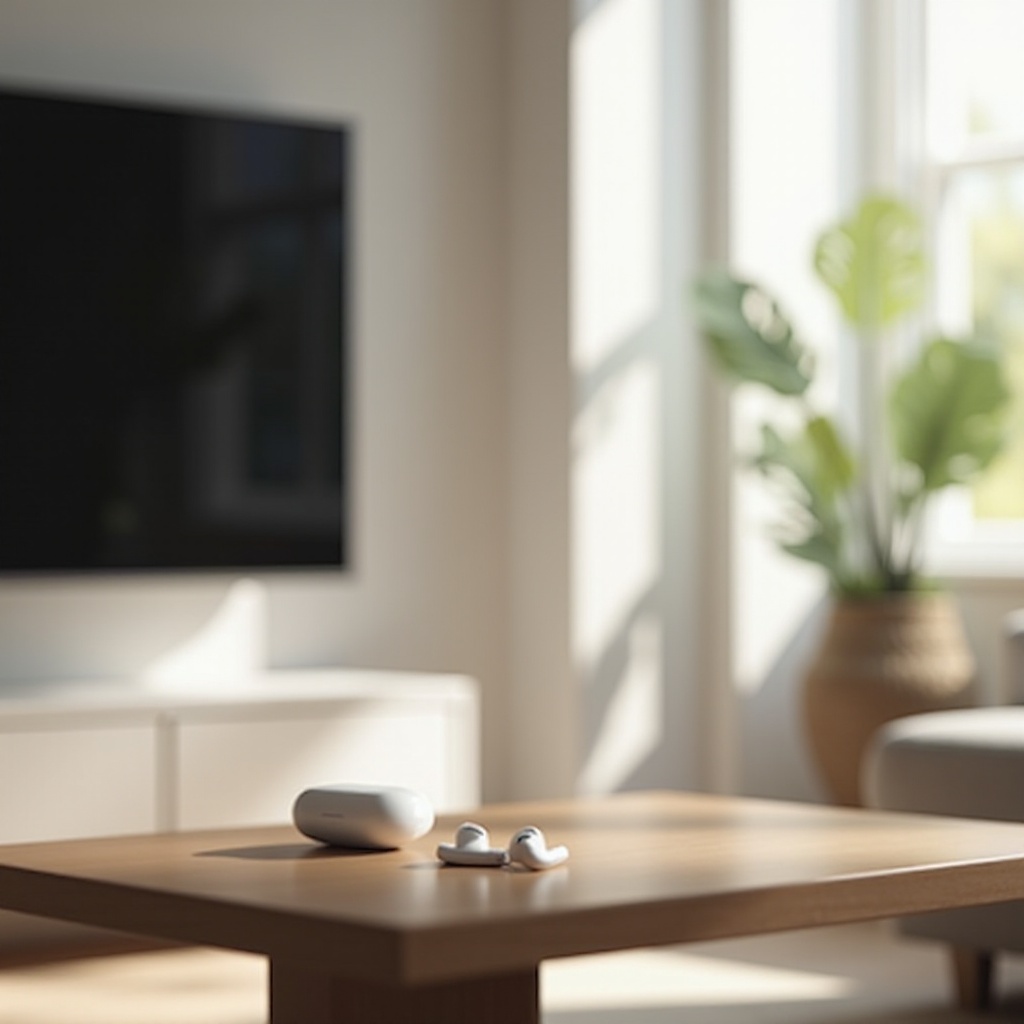
Before jumping into the connection process, ensuring your devices are compatible is crucial. Not all AirPods models and smart TVs offer seamless connectivity, so let’s verify.
- Check Your AirPods Model: Make sure your AirPods support Bluetooth connections. Most recent models, including AirPods Pro and AirPods Max, do.
- Verify Your TV’s Bluetooth Version: Modern smart TVs generally include Bluetooth, but it’s important to confirm. TVs with Bluetooth version 4.0 or higher are recommended for optimal performance.
By ensuring this compatibility, you can proceed confidently, knowing the connection will be successful.
Step-by-Step Guide to Connecting AirPods to Smart TV
Connecting AirPods to a smart TV doesn’t have to be complicated. Follow these steps for a hassle-free setup:
- Turn on Bluetooth on Your TV:
- Go to your TV’s settings menu.
-
Locate the ‘Bluetooth’ option and enable it if it’s not already active.
-
Prepare Your AirPods for Pairing:
-
Place the AirPods in the charging case, open the lid, and hold the setup button on the back of the case until the light flashes white.
-
Pair the Devices:
- In the Bluetooth menu of your TV, search for new devices.
- Select your AirPods from the list.
-
Confirm the pairing if needed.
-
Test the Connection:
- Play any audio to ensure the sound is directed through your AirPods.
Instructions for Specific TV Brands:
– Samsung Smart TV: Access ‘General’ in Settings, then ‘External Device Manager’ and select Bluetooth. Follow pairing as instructed.
– LG Smart TV: Open ‘Settings,’ choose ‘Sound,’ then ‘Sound Out.’ Select ‘LG Sound Sync/Bluetooth.
– Sony and Other Brands: Navigate to ‘Settings,’ choose ‘Network & Accessories,’ then ‘Bluetooth’ to proceed with pairing.
By following these steps, you’re set for an enhanced audio experience with your smart TV.
Troubleshooting Common Issues
Connection problems can happen, but they often come with simple solutions. Here are common issues and their fixes:
- Bluetooth Connection Drops: Ensure minimal Wi-Fi interference by maintaining a reasonable distance from the router.
- Audio Lag: Check for firmware updates on both your TV and AirPods to resolve this issue.
- Pairing Failures: Reset your AirPods by holding the setup button until the light flashes amber, then white again.
Addressing these problems will lead to a stable and enjoyable audio experience, enriching your viewing time.
Optimizing Audio Experience
Achieving the best sound quality can transform your media consumption. Here are some optimization tips:
- Adjust AirPods Settings: Use any available equalizer or sound enhancement settings on your TV for the best results.
- Surround Sound Settings: Activate any surround sound capabilities on your TV to deepen the audio experience.
These adjustments can significantly improve sound clarity and richness.
Exploring Additional Connectivity Solutions
If your TV isn’t Bluetooth-compatible or if connectivity is unstable, consider these alternatives:
- Bluetooth Transmitters: Invest in a Bluetooth transmitter that connects to your TV’s audio output, enabling wireless connection.
- Third-Party Apps and Tools: Explore apps that facilitate Bluetooth connectivity via local networks.
These solutions extend wireless audio features to older models without built-in Bluetooth.
Conclusion
Enhancing your viewing experience by connecting AirPods to a smart TV is both practical and rewarding. Enjoy wire-free, high-quality audio that complements your visual experience seamlessly. By understanding compatibility and following our guide, you have all the tools needed to set up a flawless audio experience with your TV.
Frequently Asked Questions
Can I connect my AirPods to an older smart TV?
Yes, you can use a Bluetooth transmitter connected to the TV’s audio output for compatibility.
What should I do if my AirPods don’t connect to the TV?
Ensure both devices are turned on and within range. Check settings for Bluetooth visibility, and try resetting your AirPods.
Is there a way to improve sound quality when using AirPods with a smart TV?
Utilize your TV’s sound enhancement settings and equalizer adjustments for better audio output.